Category Archives: To Do

To Do: Sharing Tasks and Lists

If grocery shopping and vacation plans are tasks you prefer to do with help from a partner, Microsoft To Do has you covered.

To Do attaches to your Outlook/OneDrive profile, and identifies you by your Microsoft account email.

To make a Task List shareable, it must first Not be a Smart List. Lists such as My Day, Important, and Assigned to Me are unshareable, meant only for the person using this instance of MS To Do.

Any lists you create, however, can be shared.

To make a list that you can share, shareable, first you’ll right click on it in the left margin to produce the List menu:
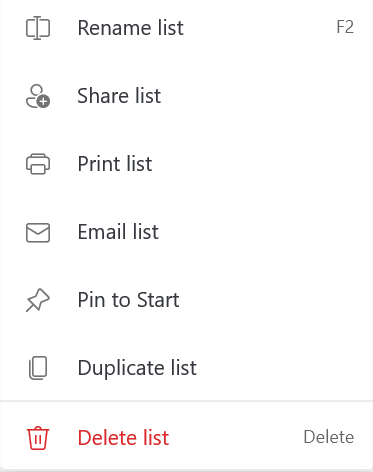
Selecting ‘Share list’ will enable sharing for the list, and produce a dialog box where you can invite your sharemate via email or through copying the link and pasting it to a chat app, etc.:
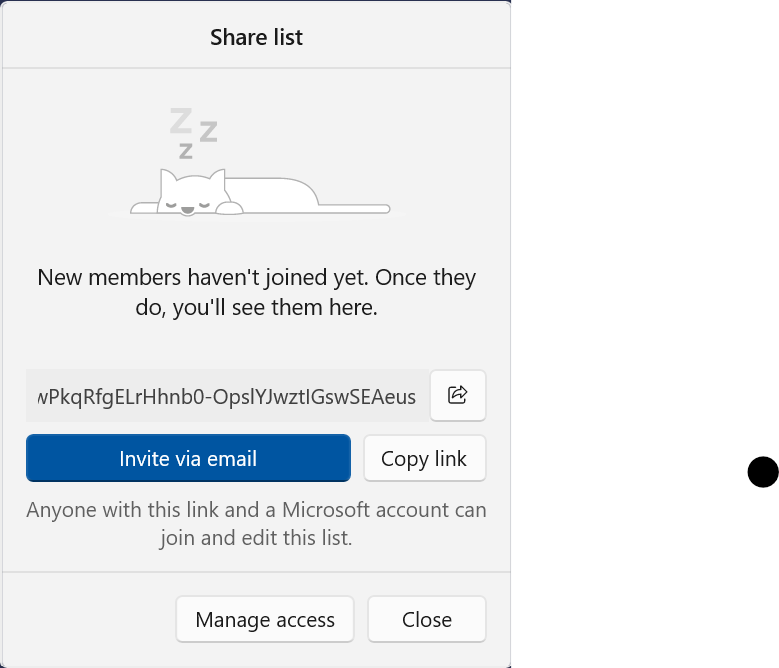
The Share List dialog, with copy link and email buttons

Once you have invited your partner, their acceptance of that invite grants them read, write, and reshare access to that list only. You’ll need to repeat this for each list you want to share with each partner.

Lists you’ve enabled sharing on will appear in your Lists (beneath the Smart Lists) with the two-person Sharing icon, whether or not any partner accepted your invite.
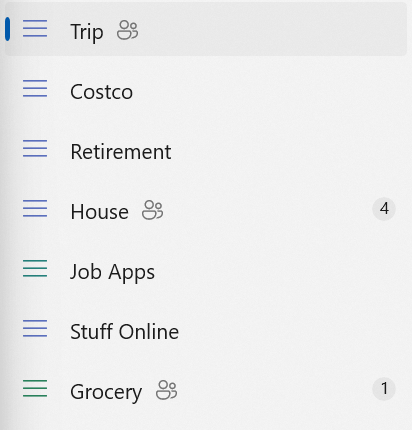
Finally, you can use the ‘Manage access’ button to limit access to a list to the current members, to add and remove existing share partners from a List, and to ‘Stop sharing’ altogether.
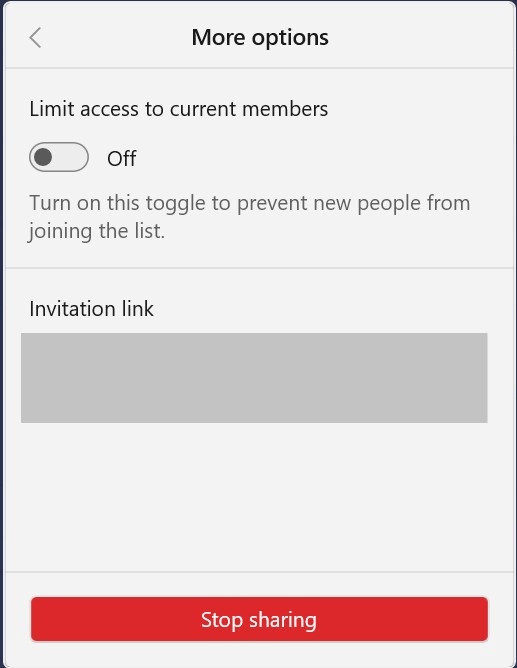
Invitation link is obscured in this image, but you get the idea.

Right-clicking the list once you’ve enabled Sharing gives you the same right-click menu as before, except that ‘Share list’ is now ‘Sharing options’. It still takes you to the same menu.

Recurring Lists, for things like Grocery Shopping, can be useful in the store. If you split up to get different items, you can each keep track in quasi-real time which items on the list you find. No one needs pen and paper, and you don’t need to track your partner down to see if they picked up coffee, for example.

We hope this was helpful, and that you enjoy using To Do to keep track of what you… Do.

To Do – the 30,000 ft. View (Part 3)

MS To Do started as an auxiliary applet for tasks and other lists (such as grocery shopping) within Outlook, integrating with Outlook Calendar. In the days of pervasive monitoring, it would also offer to generate a task out of what you were writing in response to emails, in which case it would annotate your Outlook calendar and remind you of your task if you happened to mention the person/company again, such as in another email.

To Do, the Windows app. Configuration my own.

To Do is, at its heart, a List app and it gives you lists in two categories: Lists, and Smart Lists. My Day, Important, Planned, Assigned to Me, and Tasks are all Smart Lists. You can’t delete or rename those, and that’s a benefit, because they help categorize your tasks as you put them in. Lists you create are not Smart Lists, and can be renamed or deleted. To Do provides Shopping and Grocery Lists by default, and you can delete or rename those, too.

To Do retains a good amount of its traditional behavior, and that’s a good thing. You can share tasks and other items through Outlook with others, and you have access to your tasks on the web, on your phone, and as a Windows Store app, if you choose. Tasks are part of your Microsoft/Office profile; it even uses your preferred email alias.

Minding one’s own business or not is a recurring theme in technology, and To Do is no different. Many of us have stories of Alexa or similar spying on us. Outlook itself is now completing your sentences.

Outlook, completing your sentences, like the soulmate you’ve always wanted your computer to be.

Smart Lists, Lists, and Tasks

In that tradition, To Do will determine some things about your Task in order to put it in one or more of the available Smart Lists:

  • When you add a Task, it always appears in the Tasks Smart List. (All Tasks are Tasks.)
  • You can assign a List for your Task, and it will appear there.
  • If you assigned a Due Date for your Task, either by adding date-specific text (e.g. ‘Scoop litterbox by Friday‘) or by toggling the “Add due date” calendar within the text and selecting a date there, your Task goes into Planned.
  • You can share Lists and Tasks with others, and they can share with you, likewise. When you receive a Shared Task, you’ll see it in the Assigned to Me Smart List.
  • Tasks that are toggled Important (right-click, Mark as Important) will appear in the Important Smart List.
  • Finally, any uncompleted Task with a Due Date appears in My Day.

Tasks themselves are quite flexible. You can add steps to a Task, and they’ll appear as subtasks beneath the Task, in the order you designate. Clicking on a Task gives you its context menu, from which you can click ‘+ Add step’ to add text describing the first step. Pressing Enter or clicking ‘+ Next step’ will give you a next step, and once you have two or more steps, you can drag them atop and between one another to set the order of completion. The three-vertical-dot context menu on the right allows you to toggle Importance, Mark Complete, Promote to Task, or Delete for each step.

Task with Steps

Back on the List on which it appears, To Do dutifully keeps track of how many steps, how many completed steps, and any due date. Clicking on the Task once again returns you to the context menu, where you can mark steps complete, and use any of the provided tools to change your Task.

Next, we’ll tackle what else you can do with Lists and Tasks: sharing (Lists, Tasks), adding Notes, and other flexes of To Do with Office/Outlook.

Happy Doing!

To Do, Part Two

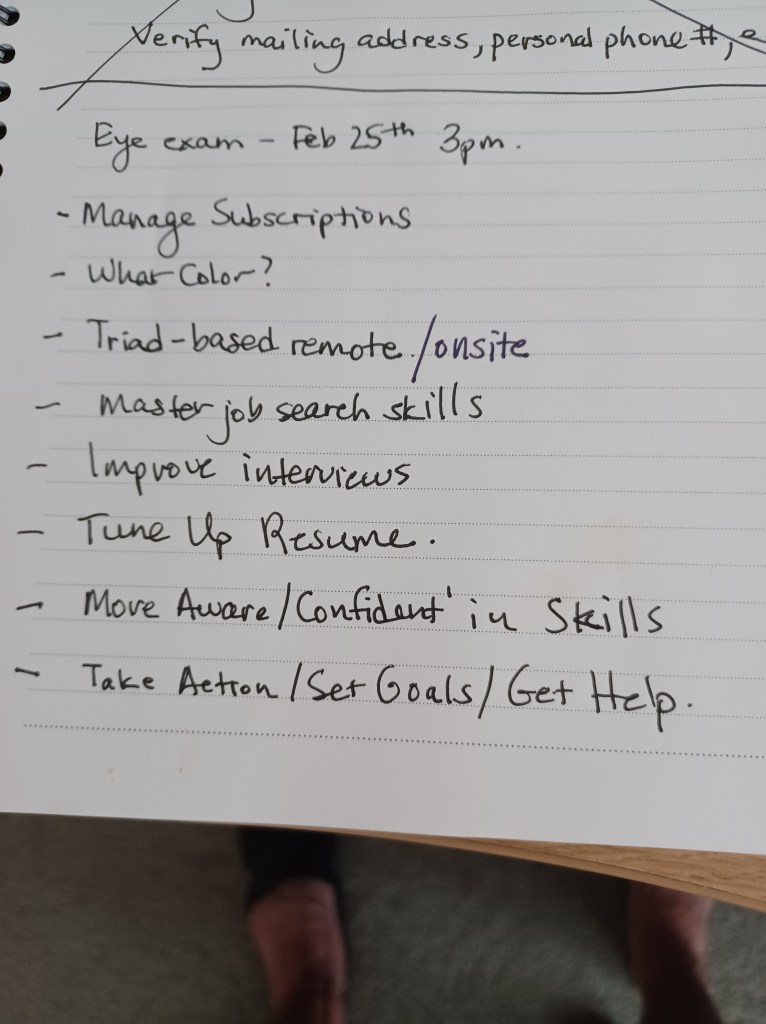
Having installed Microsoft’s version of the To Do application, the next thing I did (even before reading any documentation) was to pour tasks into it from my latest paper notebook of important stuff. That might have been an… overexuberance.

But for years, that’s how I worked before I got To Do. I’d buy a new spiral college-ruled notebook (if I’d run through the previous one) and painstakingly transcribe unfinished tasks from the latest (as far as I knew) list to a new one, along with notes like phone numbers, addresses, prerequisites, etc. I usually write in manuscript, and I like how it looks. I could even take the notebook with me in the car, unlike my desktop computer.

Would suggest you shred pages like these and get on To Do.

Still, if I needed to remember a date or set a reminder, of course that had to be on the computer. I went years this way, living the dichotomy of analog tasks and digital calendar and it worked, mostly, but I was looking for better economy of effort.

My history of selecting the right app to keep a schedule, organize my tasks, and make sure my life is (mostly) on time had been long, and largely unfruitful. It started with Outlook Calendar, which left consideration because once upon a time I had to hook up the application to a business email (or run Active Directory from the house) to use the app. OneNote wasn’t the purposed Microsoft app for what I wanted to do, however much I envisioned it to be (and frankly, how cool it is — if Microsoft doesn’t completely overhaul it).

Google Tools were promising, but my Gmail was overrun by newsletters and spam, and I’d otherwise have to find a way to use my Outlook email to generate Google Calendar tasks. Whether by my own idiosyncrasy, or for real IT reasons, I wasn’t finding my sweet spot – until now.

Microsoft To Do came midway through a time of intense, seemingly endless process in my life, and I could access it on my own terms, within a process that worked. I still keep my notebooks, but even then you can print specific tasks with steps and notes, much less lists, if you need paper to tote around.

My one tip at the end of Part Two is your reward for having gotten this far. In Windows 10/11, locate your Startup Apps in Settings. Make sure this is set to go:

It’ll save you from having to remember to go find it, and start it, and work in it, EVERY TIME.

Happy Doing.

Using Microsoft To Do to… Do.

I’ve been looking to organize and process the complex and salient aspects of my life – house move, driver’s license conversion, address changes, CAREER CHANGE, etc. I started big – somewhere there’s a Jira instance with one task on it, I checked into ScrumMaster certification, I think I explored the project-based features of GitLab (it sure worked when I was a software developer). None of that did the trick – I’m not a project manager, Scrum of me and my cat isn’t it, and all of that is too much software to do what amounts to… making and using lists of things to do.

Yesterday I tore across the hallway for no apparent reason, today I’m going to sleep on your keyboard, and my only blocker is I want food, now.

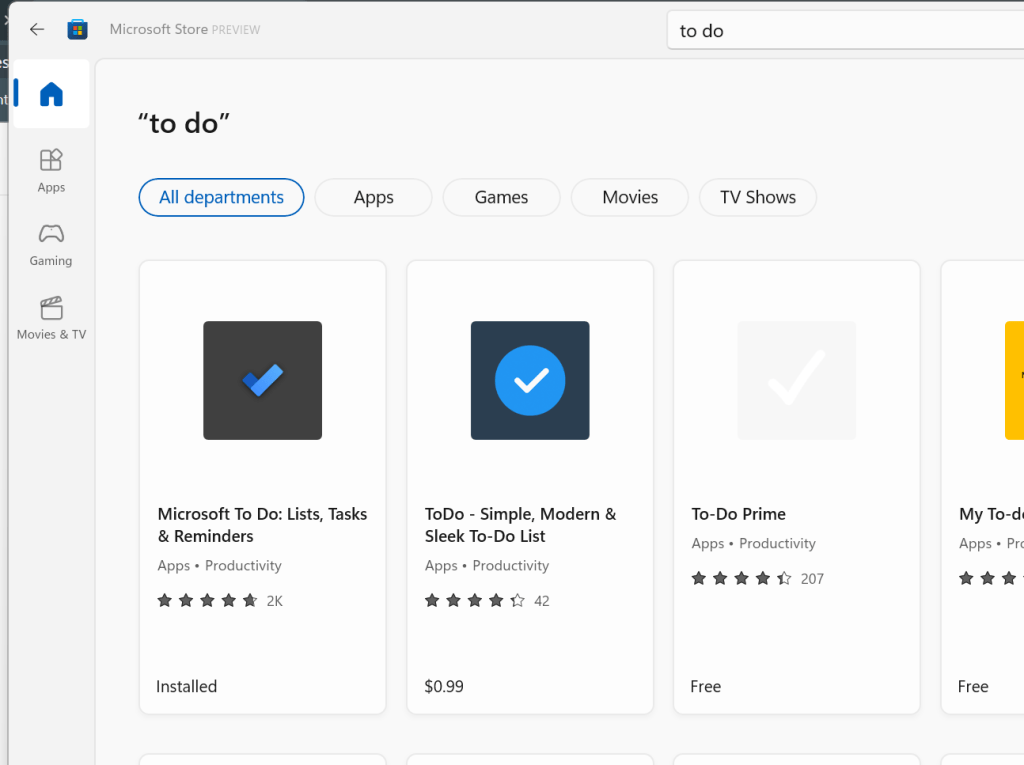
Dejected, I e-trudged into Microsoft Store, resigned to pull some ad-bloated app maybe I could have written myself at one time, and typed: to do.

All hail the monopoly.

If Microsoft makes it, I know it’s going to be QA’ed to death. It’s going to have ever-growing features that make sense to people who use the app, and you’re going to get comprehensive notes about how to use it.

More when I come back.