
Having installed Microsoft’s version of the To Do application, the next thing I did (even before reading any documentation) was to pour tasks into it from my latest paper notebook of important stuff. That might have been an… overexuberance.
But for years, that’s how I worked before I got To Do. I’d buy a new spiral college-ruled notebook (if I’d run through the previous one) and painstakingly transcribe unfinished tasks from the latest (as far as I knew) list to a new one, along with notes like phone numbers, addresses, prerequisites, etc. I usually write in manuscript, and I like how it looks. I could even take the notebook with me in the car, unlike my desktop computer.
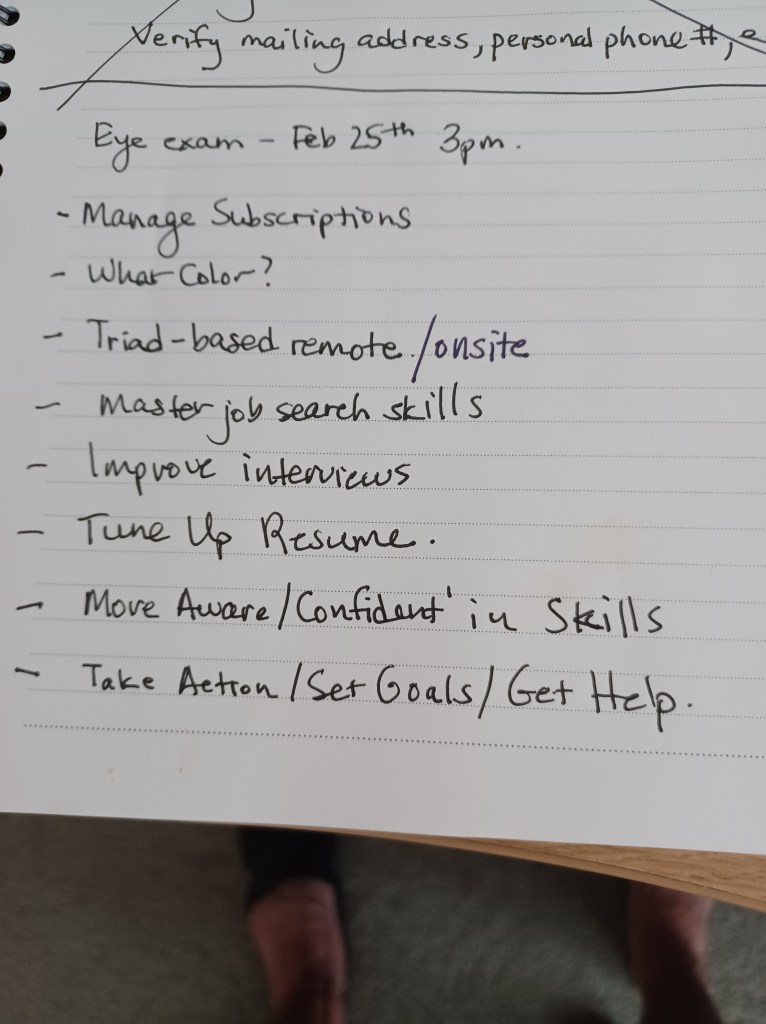
Still, if I needed to remember a date or set a reminder, of course that had to be on the computer. I went years this way, living the dichotomy of analog tasks and digital calendar and it worked, mostly, but I was looking for better economy of effort.
My history of selecting the right app to keep a schedule, organize my tasks, and make sure my life is (mostly) on time had been long, and largely unfruitful. It started with Outlook Calendar, which left consideration because once upon a time I had to hook up the application to a business email (or run Active Directory from the house) to use the app. OneNote wasn’t the purposed Microsoft app for what I wanted to do, however much I envisioned it to be (and frankly, how cool it is — if Microsoft doesn’t completely overhaul it).
Google Tools were promising, but my Gmail was overrun by newsletters and spam, and I’d otherwise have to find a way to use my Outlook email to generate Google Calendar tasks. Whether by my own idiosyncrasy, or for real IT reasons, I wasn’t finding my sweet spot – until now.
Microsoft To Do came midway through a time of intense, seemingly endless process in my life, and I could access it on my own terms, within a process that worked. I still keep my notebooks, but even then you can print specific tasks with steps and notes, much less lists, if you need paper to tote around.
My one tip at the end of Part Two is your reward for having gotten this far. In Windows 10/11, locate your Startup Apps in Settings. Make sure this is set to go:

It’ll save you from having to remember to go find it, and start it, and work in it, EVERY TIME.
Happy Doing.

